
You find a lovely box file, but it’s a little too small for what you want to keep in it. So you open it in your laser software, drag the corner to make it 50% bigger, and cut it. Then you try to put it together – and the tabs rattle around in slots that are way too wide. The box falls apart in your hands.
Nothing is wrong with the file, and nothing is wrong with your laser. Scaling just did exactly what you asked. In this article I’ll show you, in plain words, why joints break when you resize a design and how to resize it the right way – bigger, smaller, or for a different plywood.
Short answer: when you scale a design, everything grows or shrinks – including the slots. But your plywood stays the same thickness, so the joints stop fitting. If you only need the design for thicker or thinner plywood, don’t scale it: fix the slots and tabs instead. If you need it bigger or smaller, don’t scale it in your laser software – my free Fit My File tool changes the size and keeps the slots and tabs at your plywood thickness.
Why scaling breaks the joints
Think of a door and its key. You can make a bigger door, but if you also make the keyhole bigger, your old key won’t turn in it anymore.
A laser cut box, stand or toy holds together with slots, fingers and tabs. A slot is a narrow cut that another piece of plywood slides into, so it is drawn exactly as wide as the plywood – say 3 mm. When you scale the whole design to 150%, that slot becomes 4.5 mm wide. Your plywood is still 3 mm. That’s the problem.
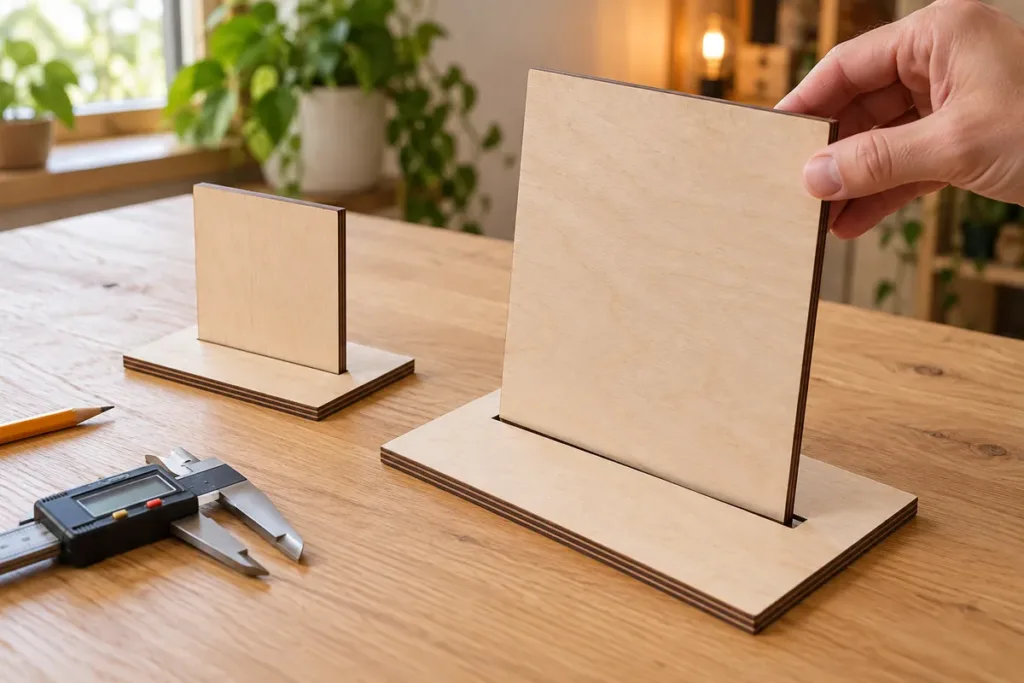
Here is what happens to a slot drawn for 3 mm plywood at different sizes:
| Scale | The slot becomes | With 3 mm plywood |
|---|---|---|
| 70% | 2.1 mm | won’t go in |
| 90% | 2.7 mm | you need a hammer |
| 100% | 3 mm | fits |
| 120% | 3.6 mm | wobbles |
| 150% | 4.5 mm | falls apart |
Even 10% matters: a 3 mm slot at 90% is 2.7 mm, and the plywood won’t go in without force. So if a design has joints, don’t just drag the corner – the size and the joints have to be changed separately.
Joints don’t fit your plywood? Upload the SVG to my free Fit My File tool, type the thickness it was drawn for and the thickness of your sheet, and download the file with every slot and tab fixed. Engraving and text stay as they were. No sign-up, no email – and the file never leaves your computer.
First, decide what you actually want
People say “resize” for two different things, and they need two different fixes:
- The same thing, but for thicker or thinner plywood. The file is for 3 mm and your sheet is 4 mm – or the “3 mm” you bought is really 2.8 mm. The size is fine; only the joints need to change. Don’t scale.
- The thing itself bigger or smaller. You want a box for a bigger item, a stand for a bigger plate, a toy twice the size. Change the size, but keep the joints at your plywood thickness.
Same size, different plywood: fix the joints, not the size
This is the most common case. A lot of plywood sold as 3 mm is really anything from 2.7 to 3.2 mm, so it happens even when the label matches the file. Measure your sheet with calipers in three places and use the average.
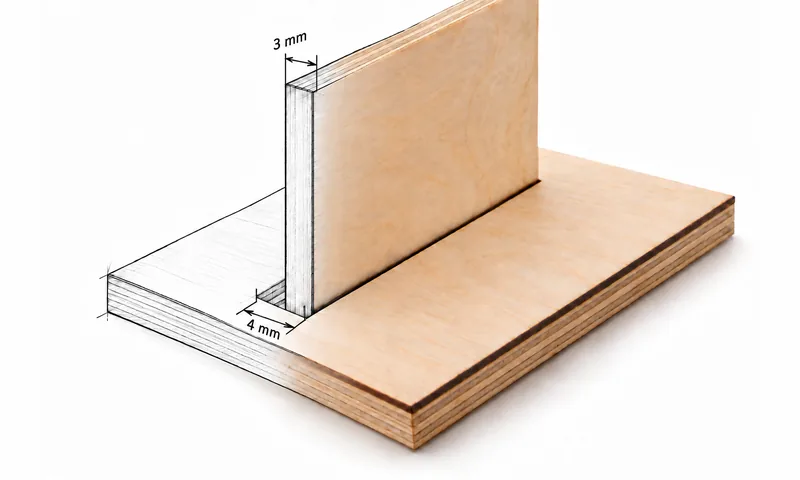
Some things must keep their size no matter what. A drawer insert for an IKEA Kallax cube has to fit the cube – if you scale it to make the joints fit 4 mm plywood, it won’t fit the shelf anymore. Here’s how to fix only the joints:
- Open Fit My File and upload your SVG. The file is read right in your browser – it isn’t sent anywhere.
- Under Drawn for, enter the thickness the design was made for. It’s usually on the product page or in the file name, and the tool suggests one too.
- Under Your material, enter the thickness you measured.
- Enter your kerf – how much the beam burns away. Don’t know it? Measure it with the Kerf & Fit Test, or read what kerf is first.
- Look at the preview. Green joints are fixed. Amber ones look like joints but might be part of the drawing – switch them on or off yourself.
- Download the file and cut one slot and one tab from a scrap first. If it fits, cut the whole thing.
With thicker plywood, the fingers grow outward, so the space inside a box stays the same and the outside gets a little bigger. If parts sit very close together on the sheet, spread them apart a bit.
Bigger or smaller: resize it in Fit My File
Now let’s say you really want the thing bigger. Don’t drag the corner in your laser software – Fit My File can change the size and keep the joints right at the same time:
- Upload your SVG to Fit My File.
- Under What do you want to change? switch on Size.
- Type the new scale – 150%, for example – or the new width of the whole drawing.
- Check the preview and download. The whole design grows, engraving and text too, but the slots stay as wide as your plywood and the fingers and tabs stay as deep as it.
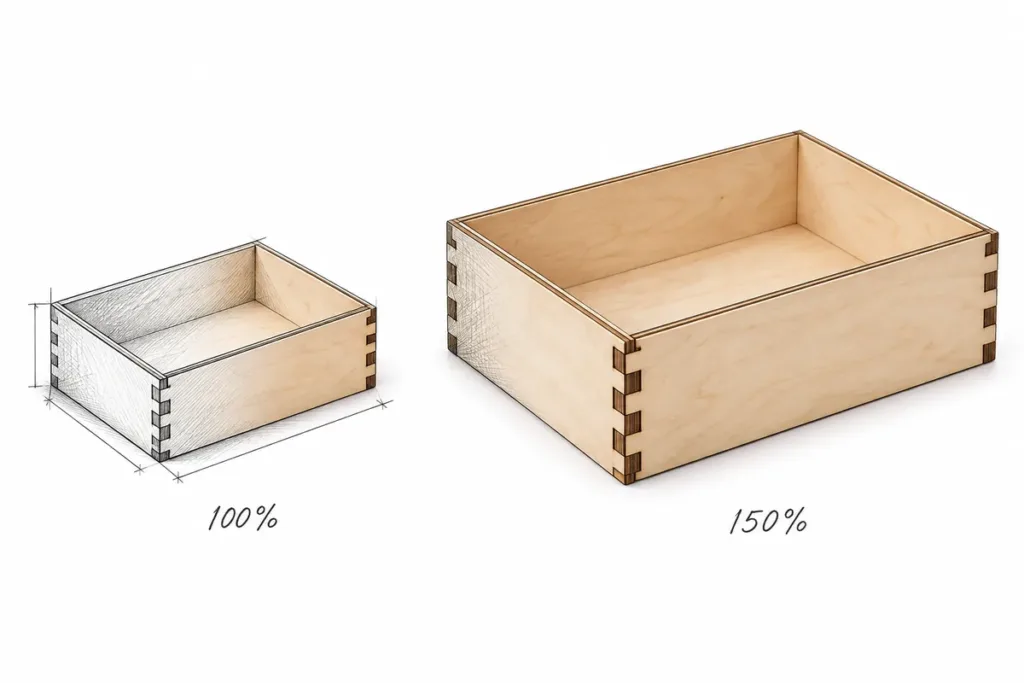
The number of fingers stays the same – each one just gets wider. And check that the new size still fits your laser bed.
Bigger and in thicker plywood
A bigger piece often looks better in thicker plywood anyway. Switch on both Size and Material thickness: for example, a box drawn for 3 mm, made 150% bigger, cut from 4 mm plywood. One pass, one file.
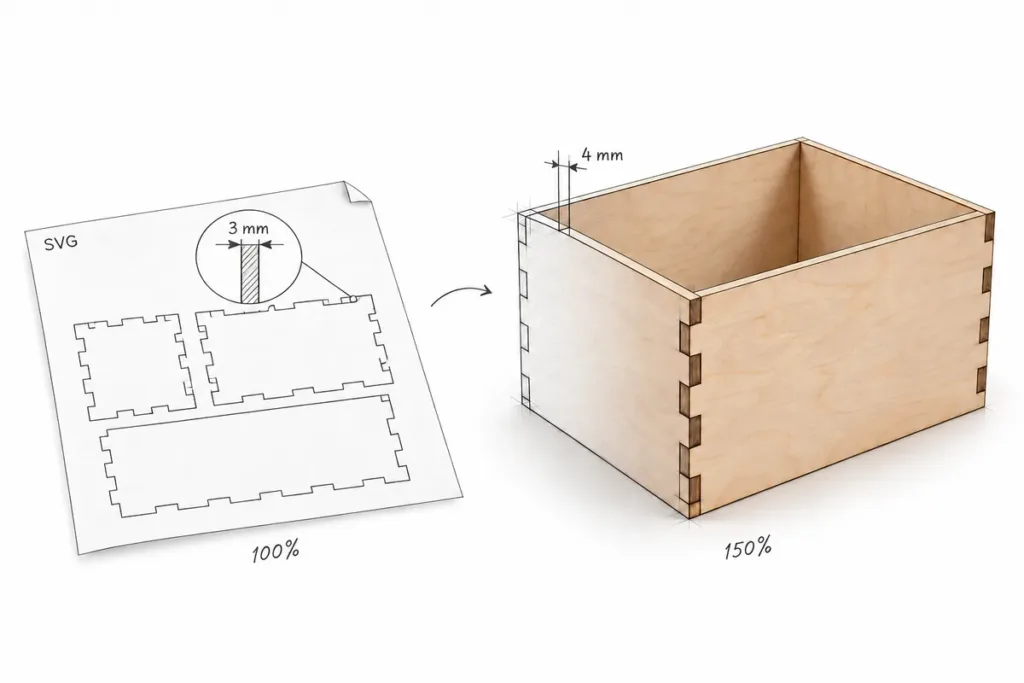
Already scaled the file in your software?
No problem. The slots are now old thickness × scale wide: a 3 mm file at 150% has 4.5 mm slots, at 80% – 2.4 mm. Upload that file, enter the new number under Drawn for (4.5 mm, for example) and your real plywood under Your material, and the joints fit again.
Need a box in a completely new size?
For a plain box, it’s often easier to start fresh. My free Box Generator builds a box in any size for your plywood, with the joints already right. If you’re not sure which size to type, here’s how inside and outside box sizes work.
What else to check after resizing
- Lids and shelves that just rest on top. They have no joint, so nothing fixes them for you. Check that they still sit right.
- Small details when you shrink. Thin lines, small letters and tiny holes can get too thin to cut or engrave cleanly. Look closely at anything under about 1 mm.
- Your laser bed. A design at 150% may no longer fit your sheet or your machine.
- The size the file opens at. If a file opens much bigger or smaller than it should, it’s often the units, not you – files from Illustrator can be read at 72 instead of 96 pixels per inch. Check one known size before you cut.
- Bending patterns. A living hinge (the pattern of little cuts that lets wood bend) bends differently when its lines are further apart. Test it on a scrap.
Common mistakes
- Scaling and cutting right away. Always check a slot width after scaling.
- Scaling to fix the plywood. If the size was right, fix the joints instead – or the item won’t fit where it should.
- Trusting the label. Measure your plywood.
- Cutting the whole sheet first. One slot and one tab from a scrap will save you a sheet of plywood.
- Forgetting the kerf. The beam makes every slot a little wider. Measure it once and use it everywhere.
Looking for designs to try this on? Here are my laser cut boxes and organizers – all with straight joints that Fit My File can fix for your plywood.
FAQ
You can, if the design has no joints – a sign, an ornament, a coaster. If it has slots, fingers or tabs, scaling changes their width too, and they stop fitting your plywood. Resize it in Fit My File instead: it changes the size and keeps the slots at your plywood thickness.
Divide the new thickness by the old one. A file for 3 mm becomes a file for 6 mm at 200%, and for 4 mm at about 133%. The whole thing gets bigger, though. If you want the same size in thicker plywood, don’t scale – refit the joints.
Look at the product page or the file name – most designers say it there. You can also measure a slot in your design software: a slot for 3 mm plywood is about 3 mm wide. Fit My File looks at the joints too and suggests the most likely thickness.
Resizing or refitting a file for your own cutting doesn’t change its licence. Whether you can sell the finished pieces depends on the designer’s licence – check it. Don’t share or resell the changed file itself unless the licence allows it.
Fit My File reads SVG for now. Open the DXF in LightBurn or Inkscape, save it as SVG, and upload that. You can download the fixed file as SVG or DXF.
Resize the design, keep the fit
Scaling a design is fine – just remember that your plywood doesn’t scale with it. Change the size if you need to, then bring the joints back to your sheet, cut one test joint, and you’re good to go.
Happy cutting!
– Pavel