
The first box I cut on my laser looked perfect on the screen. In my hands, it wobbled. The little teeth along the edges just dropped into their slots, and I held the whole thing together with glue and hope.
The file was fine. The problem was something tiny I didn’t know about: the kerf. In this article I’ll explain what it is in plain words, why it makes boxes wobbly (or too tight), and how to check it with one small test piece.
Short answer: kerf is the thin strip of material your laser burns away as it cuts – usually a few tenths of a millimeter. Because of it, every part comes out a little smaller and every hole a little bigger than in the file. Two parts that should fit snugly end up loose. Cut one small test to measure it, then allow for it once – in the file or in your laser software.
What is kerf?
Think of a saw. When you saw a board in half, the two pieces together are a bit shorter than the board was – the saw turned a thin strip into sawdust. A laser does the same thing, only the strip turns into smoke. That strip is the kerf.
The laser follows the middle of your line, so half of the strip comes off each side. That’s why a part comes out a little smaller than you drew it, and a hole comes out a little bigger. With a kerf of 0.15 mm, a 10 mm tooth becomes 9.85 mm and a 10 mm slot becomes 10.15 mm:
Three tenths of a millimeter sounds like nothing. But a box has twenty or more of these teeth – and together they make the difference between a box that clicks together and one that rattles.
Kerf, offset and fit: three different things
People often mix these up. Here is the simple version:
| What it means | Where you get it | |
|---|---|---|
| Kerf | How wide the laser’s cut is – the thin strip of wood that burns away | You measure it on a small test piece |
| Kerf offset | A setting that tells your laser software to move the cut line by half the kerf | LightBurn or your laser software |
| Fit | How tight you want the parts to feel: snug, firm, or loose | You choose it with your hands |
Notice the last row. Even when you know your kerf exactly, you still choose how tight you want the parts to be. Too tight is not good either: plywood is never perfectly even, glue and paint need a little room, and a joint you have to hammer in can crack.
Not sure what your kerf is? My free Kerf & Fit Test shows it after one small cut – and lets you feel which fit you like best. No sign-up, no email.
Why is my box too loose or too tight?
Here are the usual reasons, starting with the most common one:
- Loose everywhere – the kerf wasn’t taken into account at all. Measure it and allow for it.
- Too tight everywhere – the kerf was taken into account twice: once in the file and once more in LightBurn. Keep only one.
- The teeth are fine, but slots for dividers or the lid are not – your plywood isn’t as thick as the label says. “3 mm” plywood is rarely exactly 3 mm. Measure it with calipers and use the real number.
- Everything is a bit too big or too small – the file was resized when you opened it. After opening, check one size you know.
- It fit last month, but not today – new plywood, a different speed or power, the focus, or a dirty lens. The kerf changed with them, so test again.
- Tight one way, loose the other – some lasers cut a little wider in one direction. Cut the test in the same direction as your project.
How to measure kerf and fit with one test piece
I made the free Kerf & Fit Test for exactly this. It’s one small file with three parts: a key that shows your kerf, a comb that copies the teeth of a box, and a slot plate for dividers.
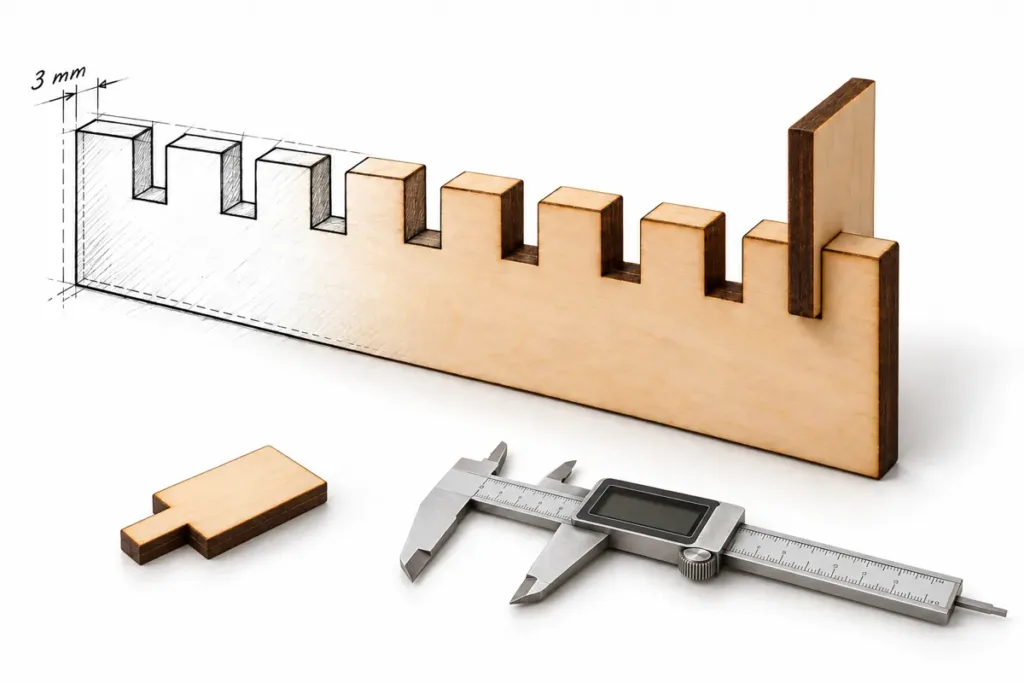
- Measure your plywood with calipers in a couple of places.
- Open the Kerf & Fit Test, type in the thickness and the tooth width you use in your box (10, 15 or 20 mm), and download the file.
- Open it in your laser software without resizing it, and check the comb length that the tool shows. Set any kerf offset to 0 – the test already allows for it.
- Engrave the blue labels lightly, then cut with the speed and power you use for real projects. Don’t sand the edges.
- Measure the key with calipers. It is drawn 24.00 mm tall – whatever is missing is your kerf. For example, 23.85 mm means a kerf of 0.15 mm.
- Push the long tooth of the key into each notch of the comb. Pick the one where it goes in with a firm push and doesn’t wiggle. That’s your fit.
- Do the same with the slots in the plate and pick the one that holds with a light push. That’s the fit for dividers.
- Click the button, and the box generator opens with your settings already filled in.
With the default settings, the whole test fits on a scrap about 14 × 5.5 cm (5.6 × 2.2 in). The tool shows the exact size for your settings.
What to do with your kerf number
- Using my box generator? Your settings come with the link, and the file already allows for the kerf. Keep the kerf offset in your laser software at 0.
- Cutting someone else’s file in LightBurn? Set the kerf offset on the cut layer to half your kerf (kerf 0.15 mm → offset 0.075 mm). But first check whether the file already allows for kerf – if the seller says so, leave the offset at 0.
- Write it down. Keep a small note for each material: real thickness, speed and power, kerf, and the notch you picked. Next time, one quick test is enough.
When kerf doesn’t matter
For engraving, decorations and ornaments that don’t slot into anything, you won’t see the difference. Kerf matters wherever two parts meet: box teeth, slots and dividers, lids that press on, inlays, and layered pieces held together with pegs.
FAQ
On 3 mm (1/8″) plywood it is often around 0.1–0.3 mm – about the thickness of two or three sheets of paper. Every laser is a little different, so measure your own.
Kerf is how wide the cut is. Kerf offset is a setting in your laser software that moves the cut line by half of that, so the parts come out at the size you drew.
No. Do it only once – in the file or in the software. If you do both, the parts get too tight.
Measure your plywood with calipers – it is often thinner or thicker than the label says. Check that the file wasn’t resized when you opened it. And try a tighter fit from the test.
Yes. A new sheet of plywood, a different speed or power, the focus, or a dirty lens can all change it. Cut a quick test whenever something changes.
Make your next box fit the first time
One small test and five minutes with calipers – and you know two things: how wide your laser cuts, and how tight you like your joints. Cut it once for every new material, and stop gluing wobbly boxes together.
Happy cutting!
– Pavel